Trace 2.16 rebuilds the whole browsing side of the app. The complaint we kept hearing, and felt ourselves, was that Trace got messier the more you used it. The window opened on whichever recording you made last and every recording sat in one flat list, which is fine at ten recordings and hopeless at two hundred. There is now a home screen that opens on today, folders to file recordings into, a rebuilt reader, and one Ask that can look at everything, one folder, or one recording.
Search has been rebuilt underneath it too. Results are ranked by how well they match rather than by date, and with AI features on it finds meetings by meaning, so you can search for a topic in your own words. Alongside that, you can now choose what Trace does when a transcript is ready, from asking for a name to a quiet notice to nothing at all, and Trace no longer touches your clipboard unless you ask it to. As always, thanks for using Trace.
A new Today view
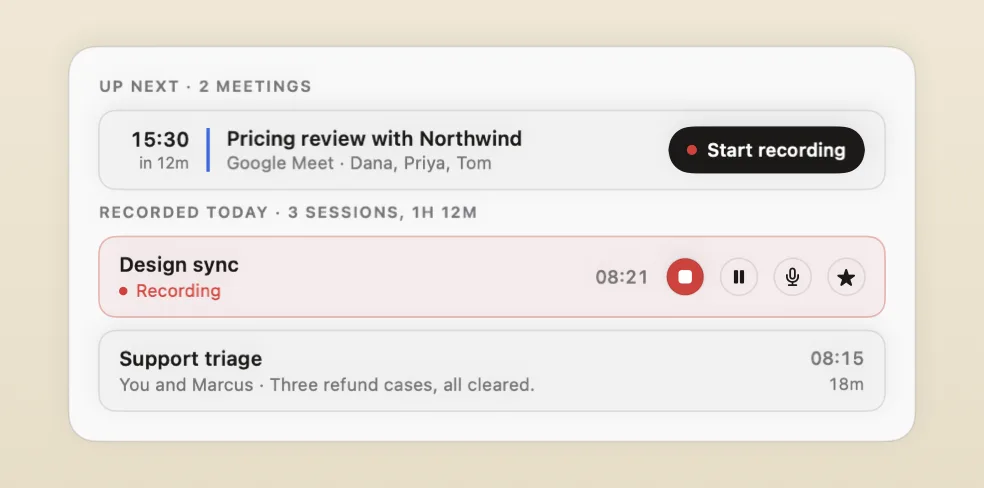
Trace now opens on the Today screen. Today's meetings sit at the top with a Start recording button on the one about to begin, recent recordings are grouped by day, and the ones you opened last are in the sidebar. A recording that is running has its controls on its row, so you can stop, pause, mute or mark a moment from here.
File recordings by project, client or team
Organise recordings by folders and tags. Every folder has its own page listing its recordings, a summary of the folder, and its own Ask interface that is scoped to only that folder, so a question about one client is answered from that client's calls and nothing else. Anything you have not filed is in Unfiled, so you can see what is still to sort.
Get around a long recording faster
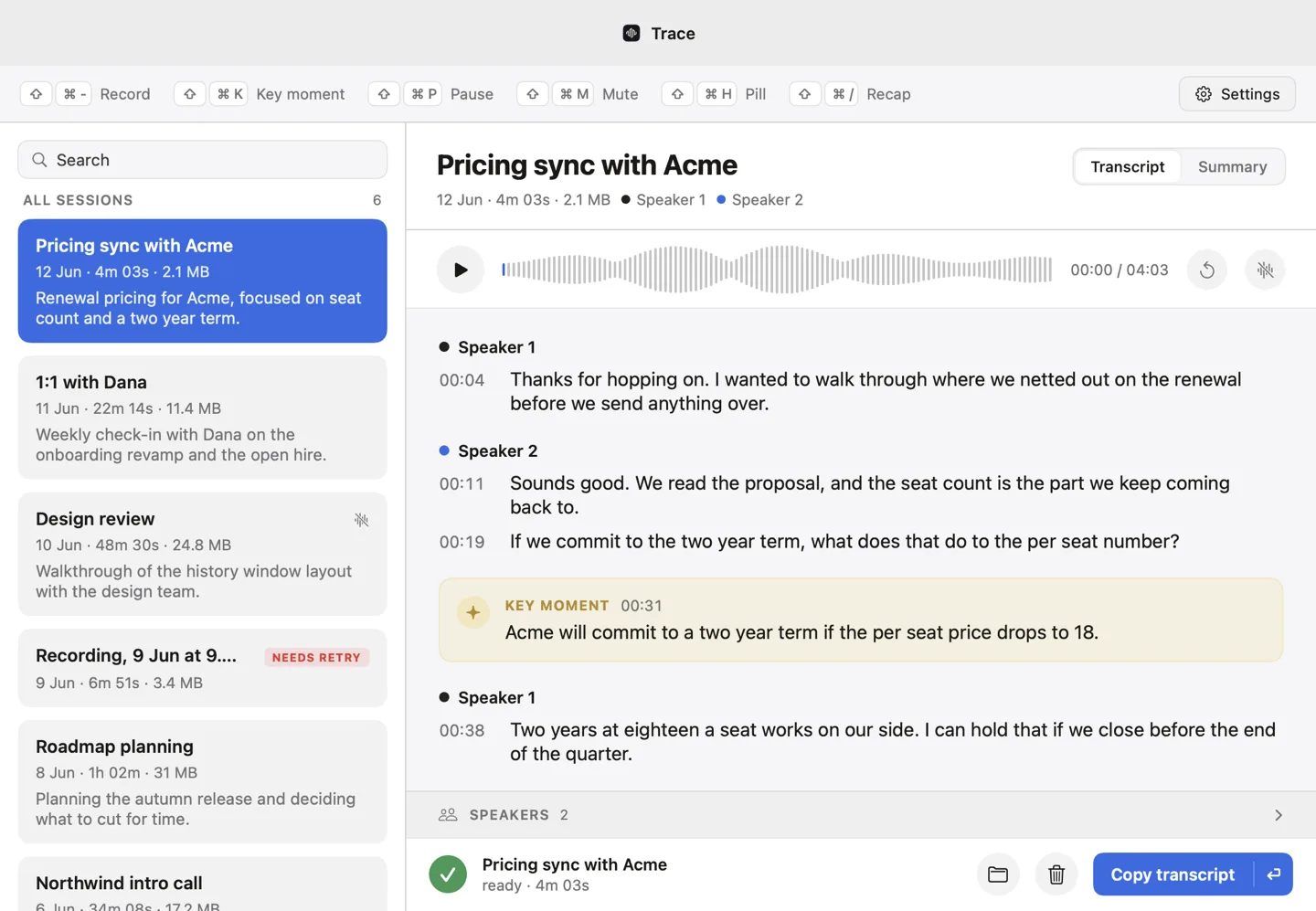
Click any line of the transcript to play from there, or click the waveform to jump about. The transcript follows the audio as it plays and stops following the moment you scroll away. The speakers panel shows who spoke and for how long, and everything you can do to a speaker, from naming to merging to hearing a snippet of their voice, is in the same place, but better designed.
Ask a question when you can't remember which meeting
A new global Ask chat interface looks through every recording to help you find the answer. Ask from a folder's page and it reads only that folder. Ask from a recording's own tab and it reads only that session. Answers cite the moments they came from and references take you straight to them.
Better navigation
Navigate back and forward to quickly get around, just like in a web browser. ⌘P opens a command palette to jump anywhere by typing, and ⌘K opens Ask. All four shortcuts can be changed in Settings under Shortcuts.
Search that puts the right meeting first
Search used to list every recording containing the exact words you typed, newest first. Results are now ordered by how well they match, with the line that matched shown under each row, so the right meeting is usually at the top. With AI features on, search also understands meaning, so "the budget conversation" finds the meeting even if nobody said "budget".
Choose what happens when a transcription completes
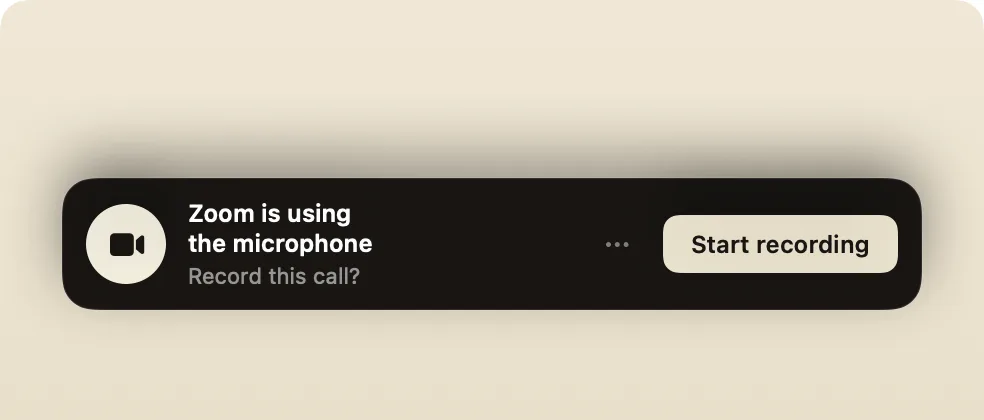
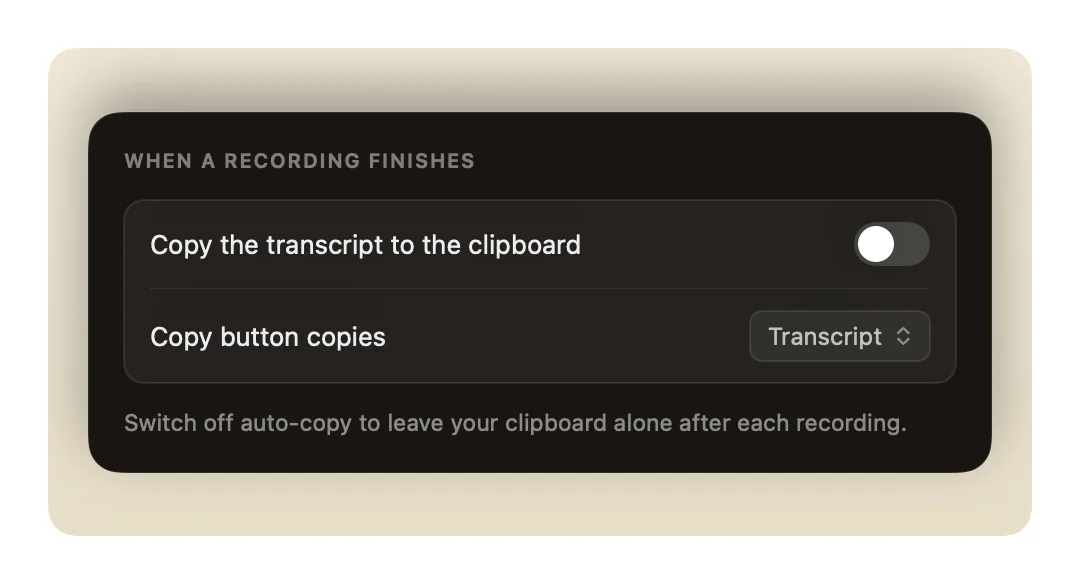
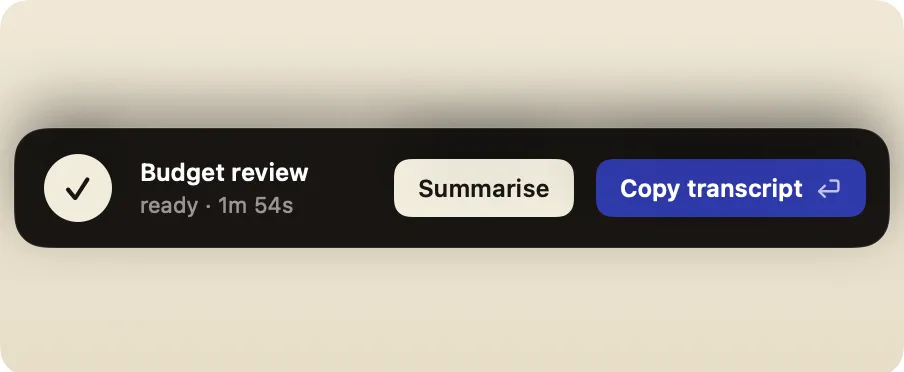
The pill used to always show when a transcription has completed, even if you had already named it. Now you can customise what Trace does when a transcript is ready, from asking every time to nothing at all. Also, transcriptions and summaries are no longer automatically copied to your clipboard when they are generated.
Automatic name suggestions
The Suggest name button is gone. Now, Trace suggests three names when you click in the empty field to name a recording.